Are you sick and tired of repeatedly enter 'default' values into your empty dimension controls for every result transaction?
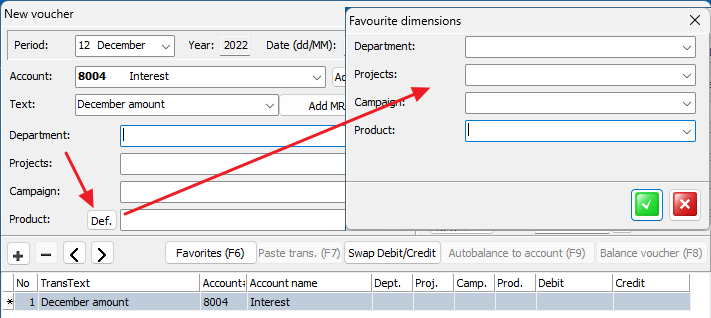
We have a cure for that too. Click the above Def. button to open a list where you can select default dimensions (which will then be prefilled for result account transactions in every new voucher). If you want to erase one of these settings, select the desired control and use your keyboard's Delete button to clear it.
Mandatory dimensions
If you want to force your accountants to ALWAYS select valid dimensions for all result accounts you may set any Dimension's Mandatory field to TRUE. Click your Settings tab and then the Dimension Types tab:
Dimension properties
To learn more about this app's basic functions when editing data, please click here ...
The dimension names and number / code masks are non-editable and defined in the License. See the App and License data tabsheet.
You find the editable properties for Dimension types in Settings / Dimension types here:
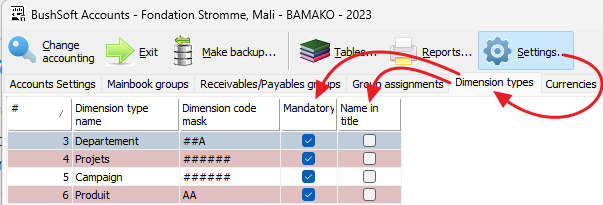
Doubleclick the desired dimension to open its editing form:
These are the only two editable properties in Dimension types:
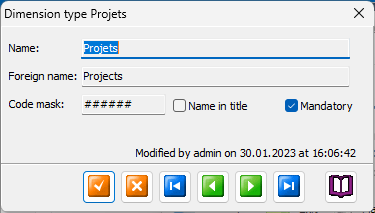
Name in title
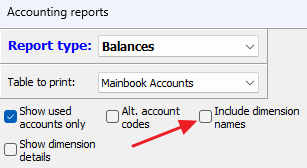
Here you may decide if you want this dimension's names in addition to its code / number to be displayed in Report Headings. Displaying the name is informative but it also takes up space in the title, so it is up to you if you want it included or not. See examples below.
"Name in title" unchecked:

"Name in title" checked:

However, the above settings may be overridden by this checkbox from the Report selection page:
Mandatory
If you check this box then the accountant MUST choose a dimension account when registering vouchers. In that case the transaction's dimension data field cannot be empty.
This is the preferred and default setting! If you leave it empty then transactions with unspecified dimensions may 'fall between two chairs' and their balances will NOT be included unless you always print result reports for ALL dimensions.