NOTE: Please read this chapter carefully, once you get used to this feature it will save you a LOT OF TIME.
When you have entered your voucher's initial debit or credit transaction(s) you need to balance the debit and credit columns of the voucher in order to save it. Vouchers always need to be balanced (the sum of all debit MUST equal the sum of credit transactions).
Normally you will need to manually enter or lookup the desired 'counter accounts' every time you save the voucher.
So to In order to process vouchers more quickly, you may create and maintain a list of the most used 'counter accounts' by pressing function key F9.
Initially this pops up a dialog with empty account list entries. Click on the small 'V' at the right end of each box, and compose a list of what YOU think will be YOUR most frequently used 'balancing' accounts. Normally cash and bank accounts are populat candidates... The list is automatically saved after each modification:
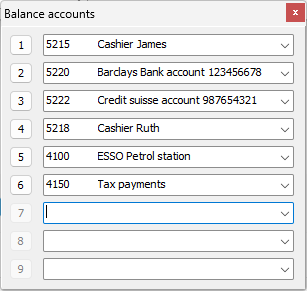
In the example above cashier James register most vouchers against his cash box account, hence that's the first entry on his list.
Example
So when you have entered (all) the expenses or incomes transaction(s) for your current voucher and want to quickly balance it against Cashier Rut's cashbox, then press F9 and then digit key 4 and then F2 to save the voucher, display its number and then proceed with the new voucher.
NOTE regarding the first listed account
If you want to just press F2 (instead of a number or <enter> key) in the same situation, then the voucher will be balanced against the list's first account (here it's Cashier James) so you don't need to show the list at all. Just see the saved voucher number and open the 'Add voucher' window for the next voucher.