Accounts settings' Left Panel
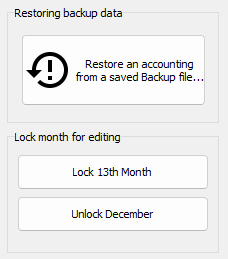
Restore database from backup
Hopefully you already know the importance of creating backup copies of your accounting and keeping those copies in safe places. So when the day arise when your accounting refuses to open due to a computer failure, or your computer has been stolen, it is nice to be able to restore your last backup to another computer and continue working without loosing any of your data.
NOTE: Remember that your (financial) partners may use a copy of your license to install NXAccounts to their computer(s). Then you may attach your backups to email messages, which allow them to create any desired report of your accounting!
IMPORTANT: Locking months
A report from a certain accounting period isn't worth the paper it is written on if its transactions or balances still can be modified. To properly indicate this 'vulnerable' situation, the keyword 'Preliminary*' is CLEARLY printed in the report header of ALL reports containing data covering non-locked periods. So before you are ready to create 'final' or conclusive reports, always make sure that you have locked the LAST month your report is covering. So the upper button on the above panel does exactly this, it locks the month of your accounting, one by one.
Do not lock January before the previous year's accounts have been properly audited and you have finished the 'Copy balances from last year' procedure.
Month locking cannot be undone unless approved by the parties receiving your reports. In those rare cases THEY may contact BushSoft to have us issue an unlock code for you to use.
However, always remember that the 'normal' way to handle posting errors for locked months is to create a corrective voucher for the next month.....
Frame Export Groups (optional)
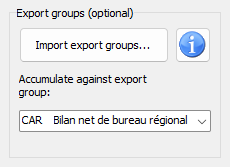
Option: Import export groups
Most users don't see this setting. This is a feature for selected customers needing to import data to their corporate accounting. This list can be updated (or its languages changed) by importing new versions here.
Option: Accumulate against export groups
Most users don't see this setting. This is a feature for selected customers needing to import data to their corporate accounting. Please make sure to set the correct accumulation group code here. Normally this is the group with code CAR
Accounts settings' left Middle Panel
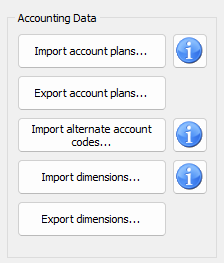
Import Chart Of Accounts
When you have received your license and are about to start your first accounting, it's a good idea to import a basic grouped to use as a point of departure. Please find more information about this situation here. You may also export the current, grouped accounts plan from another accounting and import it here.
If you want to manually create an importable grouped accounting plan in a spreadsheet like Excel, you may find important information about its layout by clicking the blue 'i' button to the right hand side.
Export Chart Of Accounts
If you need or want to share your current accounting plan with others, you may export it by clicking this button. Remember you may edit the exported file further to your liking, using a spreadsheet software like Excel. Remember though to not REMOVE or ADD any COLUMNS (paying close attention to the fields' description from the corresponding Import's blue 'i' button) saving it in the SAME (CSV) FORMAT.
Import alternate account numbers
As accounts numbering schemes may vary in different countries, you may import a set of alternative accounts numbers which are selectable as a checkbox on the reporting form:
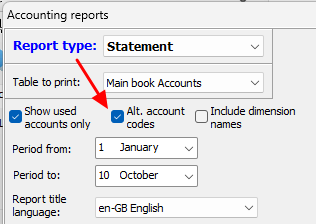
Many of our customers having donors or fundraisers on other continents use such alternative account numbers for better adaption to their own accounting systems.
Import Chart of Dimensions
Here you may import dimension data from other accountings. Make sure you import your data into the correct dimension in your accounting!
Export Chart of Dimensions
Here you may export any of your dimension lists for later import into another accounting. Remember that you may modify the file to your liking in a spreadsheet software like Excel. Remember though to NOT remove or add any columns, changing row data only, and save it in the same format as it was retrieved.
New year's frame
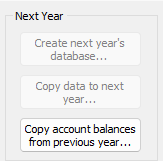
Create next year's database
This does exactly as it says: Creates an empty set of database tables ready to receive your next year's data. Normally you do this at the end of your fiscal year.
Copy data to next year....
Normally you want to copy your current accounts, dimensions, groups etc to the next year so everything is ready to start entering vouchers i January. Some of you even want to copy your budgets over if there are just small changes in amounts or other values. When clicking this button you will have the choice of which data to copy over to the next year by reviewing this window:
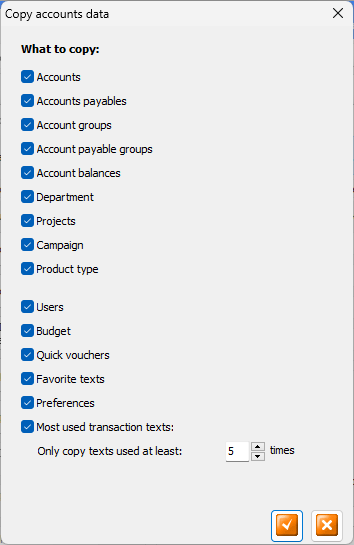
Everything is checked by default, but you edit the list to your liking.
Copy account balances from previous year....
When you open the new year's accounting for the first time you may want to copy the previous year's closing balances from your balance accounts and your Accounts Payables / Receivables. You actually do this each time you click this button.
NOTE
As the final adjustments of the previous year's accounts may continue into the new year, you may need to repeat the balance import each time the previous years accounts has been updated, until the last month of the previous year has been locked. You will be warned from the reporting screen if this year's opening balances don't correspond with the previous year's closing balances!
Frame Basic Accounting Settings
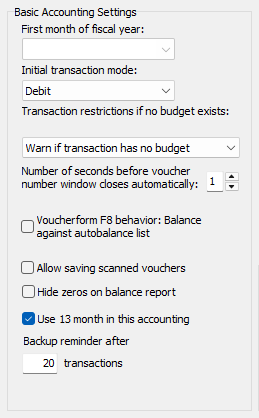
First month of fiscal year (disabled)
Now this setting is defined in your License. When purchasing your license, you have the possibility to select a 'non-standard' fiscal year period, like from July to June. Remember that this may not be changed after the first voucher has been registered.
Initial transaction mode
If you mostly register purchases in your accounting you may want to set the amount type to 'Debit' as you normally register your cost account first and then balance against cash or bank. On the contrary if most of your transactions are for Incomes, you may select 'Credit' here.
Transactions restrictions if no budget exists
Normally you will set this to 'Deny transactions with no budget' because otherwise users may post transactions whose amounts will only appear in unfiltered budget reports (reports for ALL transactions). If you don't use NXAccounts' budget feature you should set this to 'Allow transactions with no budget'.
Number of seconds before new voucher number window closes automatically
As NXAccounts may be used in networking version, also two accountants may post vouchers at the same time. Hence they don't know what 'their' next voucher number will be until their voucher is actually posted. Because of this we use a popup window to display the voucher number for a short time. Personally I set this value to one second as I normally also can see the last voucher number in my transaction list below the Edit Voucher window.
Allow saving scanned vouchers
If you want to save digital copies of your accounting vouchers you may check this box. Importing scanned voucher files is done from Tables / Transactions list's Scanned voucher button. Accepted file types are image files and PDF. NOTE: This function requires a lot of disk space, so consider if you really need this...
Hide zeros on balance reports
If you tick this box then zero value amounts (0.00) will not be printed on Balance Reports.
Use 13th month in accounting
Some of our customers prefer to post 'annual settlement dispositions' in a separate period, apart from 'normal' vouchers for the fiscal year. If you need this 'feature', please tick this box.
Backup reminder
Everyone needs to be reminded when Backups are needed. Here you may define how many new vouchers you can add between those Backup reminders. If you fail doing regular backups, you may have to re-register a huge number of vouchers when you find yourself in a situation needing to restore your accounting from a backup,
Frame Miscellaneous database functions
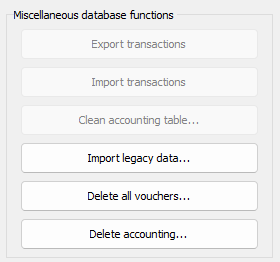
Export transactions
This button is only used by BushSoft to export voucher / transactions data to other accounting systems.
Import transactions
This button is only used by BushSoft to import voucher / transactions data from other accounting systems.
Clean accounting tables...
This button is only used by BushSoft to reindex and check the database. You may achieve the same goal by backing up and then restoring your accounting.
Import legacy data (disabled)
This button is only used by BushSoft to import data from the former very old version of BushSoft Accounts software.
Delete All Vouchers
If you have been playing with a 'test' (unrea, testing onlyl) accounting to just become acquainted with all the NXAccounts features and added piles of 'fake' vouchers you may click this button to request an unlocking code from BushSoft to complete this task. Remember that for your convenience you can always erase the LAST voucher in the table at any time as long as its period is not yet locked!
Delete Accounting
If you have been playing with a 'test' (unreal) accounting to just become acquainted with all the NXAccounts features and added piles of 'fake' accounts, dimensions and vouchers you may click this button to request an unlocking code from BushSoft to complete this task.
Frame Main-office - Suboffice
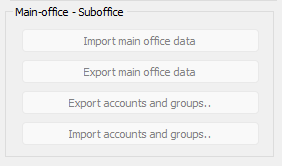
A small number of our users use this feature. They have a 'Main office' (project headquarter) which have their own accounting. In addition there are a number of 'Sub offices' and each of these have their own accounting (because they need to have access to their own vouchers and accounts details). However, after each month is locked they Export their monthly accounting to the Main office so the Main office may create reports with data compiled from both the Main office and ALL Sub-offices. Like a corporate accounting.
In order for this to work as intended it is crucial that EVERY sub-office have Charts of Accounts and Dimensions which are exactly equal to their Main Office. The buttons in this frame help them to achieve this.