Install NXAccounts on your computer - step 3 of 3
When running NXAccounts for the first time or the selected accounting has not yet been created you will see an opening form like this:
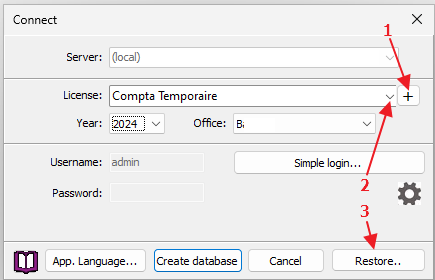
On the login window you will need to select the proper License, Year and Office names by clicking the small righthand 'V' in their respective drop-down list boxes and select the accounting, office and year you want to work with..
However, if no license name is available in your License list, you may click the small '+' button beside the license dropdown listbox (#1 above) to manually import your new license file(s) received from BushSoft. Review your license email and download the attached license file to a known folder where you can pick it up for import.
The Username and Password controls are disabled because you will be prompted to enter a suitable password for the admin user after having clicked the Create database button.
Application language
By clicking the 'App. Language...' button you may choose your preferred application language (used throughout the app in captions, menus etc) according to the languages defined in your license file.