Install NXAccounts on your computer - step 2 of 3
NOTE: You will need to have your license file(s) received from BushSoft saved to some known folder (or to a USB stick) on your computer before proceeding.
After you downloaded the installer app file (SetupNXAccouts.exe) you will normally find it in your computer's Download folder.
Now Run the installer (by double-clicking it, or right-click and choose 'Open') as you do with any other windows installer.
You may first select your desired installation language and read the license agreement to accept it before you confirm the program folder name where NXAccounts software files will be installed.
Then you enter your name (so others know who installed the software on this computer) and proceed to confirm the name of the accounting data folder. Please accept both default program and data folder names to avoid problems if you need support.
Finally you arrive at the 'Select additional tasks' installer page. If this is your first-time install you also need to copy your license(s) from where you saved them - to their proper location.
If that is your situation, please tick the 'Copy your license file(s)...' checkbox and then click on the Next button. After an info message the 'Open file' dialog appears. Now browse to the folder where you saved your license(s). If you have multiple licenses, hold down you keyboard's <CTRL> key while clicking on every license file you want to include. Finally click on the dialog's Open button to copy the selected license files to the proper folder on your computer.
Next installer page shows a resume of your entries and if you agree, click the Install button to execute the installation.
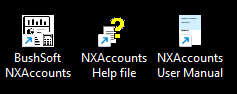
You should now be able to locate the NXAccounts' black and white shortcut / icon and its Help file and User Manual shortcuts on your desktop: